
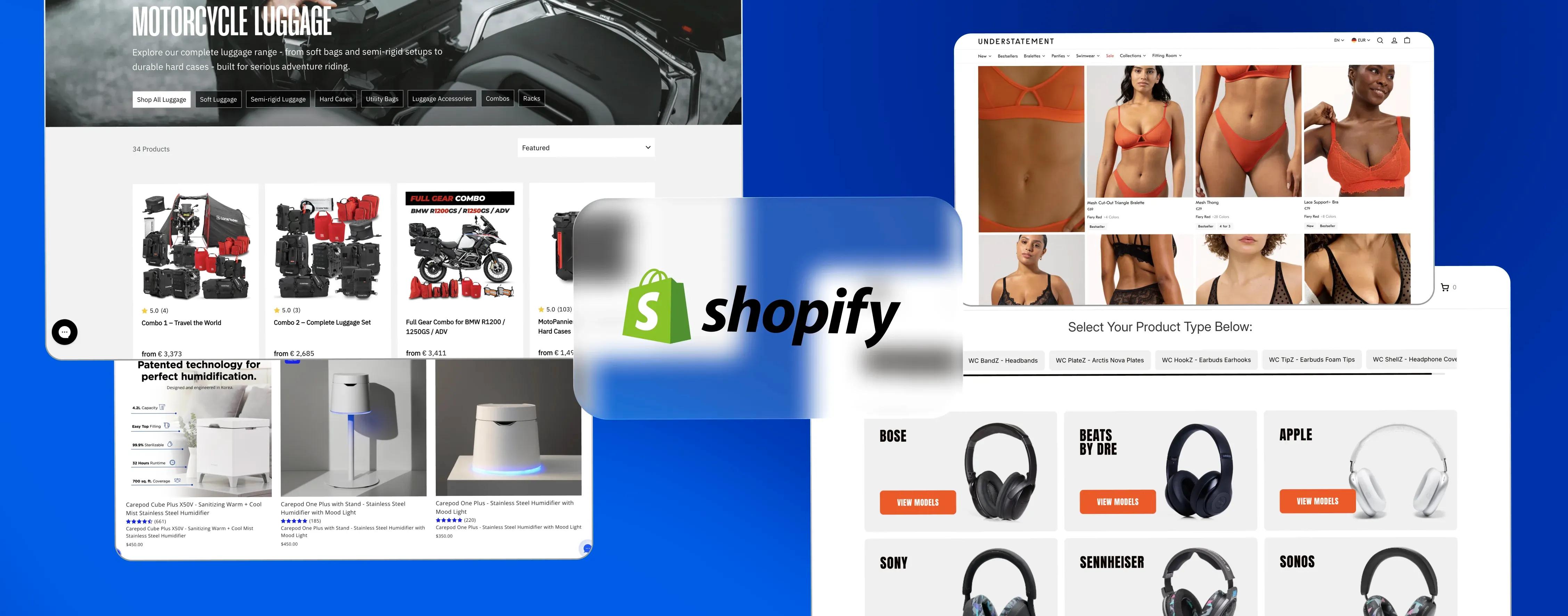
When a customer lands on your store, the chances of buying are 50/50. They don't look for one exact product yet. They need a clear path, relevant options, and a fast way to narrow things down. That is where a strong Shopify collection page starts to matter.
Collection pages do more than display products. They let customers explore, compare, sort, and come closer to buying something without hassle. When this section of the store is unclear or badly organized, they leave before they reach a product page.
That is a bigger issue than it may seem. When category navigation is unclear, shoppers spend more effort finding the right products. In practice, that means lost attention, weaker product discovery, and missed sales opportunities. This guide looks at what makes a collection page work in real conditions. We will cover the structure, design choices, and practical details that shape performance, along with common mistakes and examples drawn from real ecommerce work, including DigitalSuits projects.
TL;DR Shopify collection page design in brief
- Shopify collection pages organize similar products, which allows customers to explore by category, style, application, or any other logical arrangement.
- You may create collections manually (hand item selection) or automatically (using rules), and most businesses utilize both.
- The core elements are the header, product grid, filters, categorization, and pagination or endless scroll.
- Good Shopify collection page design relies on visual hierarchy, fast filters, strong product cards, and clear merchandising — not clever aesthetics alone.
- Real-world examples from Allbirds, Gymshark, and Aesop show how structure beats decoration.
- Avoid infinite products without filters, slow-loading grids, and design patterns that look great on desktop but collapse on mobile.
What is a Shopify collection page, and why is it important?
A Shopify collection page is a page on a Shopify store that groups and displays related products together, making it easier for customers to browse specific categories.
It works much like a physical shop, where you see men's and women's shoes in separate aisles, and sale items are usually grouped together. Online stores need that same structure, but without staff or in-store signs to guide people. A collection page takes over that role.
Collections can be organized in many ways, including by:
- product type
- season
- brand
- price
- material
- use case
A good Shopify collection page usually has to handle three things at the same time:
- Product discovery. Not every visitor arrives knowing the exact item they want. Many start with a general idea and need a clear way to explore the range. Collection pages help them browse by category and narrow their options down more easily.
- SEO. Collection pages can also bring in valuable search traffic, especially when they target specific, high-intent searches. For many ecommerce stores, these pages do more than organize products. They also help potential customers discover the store in the first place.
- Merchandising. Collection pages give merchants more control over how products are shown. You can decide what to feature first, how products are grouped, and which items should get more visibility. This is where Shopify collection page design also matters, because presentation affects how people browse and what they notice first.
Manual vs automated Shopify collections
Shopify gives you two ways to build a collection, and the choice matters more than it sounds. A manual collection is exactly what it says. You pick products by yourself and add them one by one. The product list only changes when you update it. Manual collections work well for curated edits, limited drops, or hand-assembled gift guides where the lineup is intentional.
An automated collection (or "a smart collection" in some contexts) uses rules. You set conditions like Product tag equals "summer" or Price is less than $50, and Shopify populates the collection automatically. New products that meet the rules are added, and products that no longer meet the rules drop out.
Usually, most stores end up using both:
- Manual for marketing ("Editor's Picks," "Valentine's Gift Guide").
- Automated for evergreen catalog categories ("Under $30," "In Stock").
Keeping both under control
A practical way to stay organized is to give each collection type a clear role. Automated collections work best for core menu categories that stay in place long term. That structure also supports better Shopify collection page design, since the underlying grouping stays clean and consistent.
To make that system reliable, it helps to manage product data through a PIM or a consistent CSV import, with product tags matching the names or logic of those collections.
This makes collection management easier for a few reasons:
- product data stays consistent across the catalog
- each item is grouped using one clear rule instead of mixed logic
- you can quickly check a product’s tags and see which collections it belongs to
In many cases, automation can handle far more than people expect. Even a Sale collection can be set up this way. Products can appear there automatically when they meet the discount conditions and disappear once the original price rule no longer applies. That saves time and keeps the collection accurate without extra manual work. This is also a practical way to create collections without turning routine catalog updates into a manual task.
If your catalog is large and automated collections are not set up properly, it makes sense to work with experienced Shopify developers or, if you are already on Plus, Shopify Plus developers.
An important thing worth noting: manual collections give you precise sort order control out of the box, while automated collections sort by the rules you choose (bestselling, price, manually via merchandising tools, etc.). For large catalogs, automation is the only option: imagine tagging 8,000 SKUs by hand every time you launch a sale.
Key parts of a Shopify collection page that influence how people browse
You may change a Shopify collection page by applying different themes. However, the structure will be fundamental. Despite the visual style, there are core parts that carry the page. When those parts are clear and well thought through, browsing will be easier. When they are weak, the whole page will be very hard to use.
The main pieces usually include:
- Header area. The first section people see. It often includes the collection name, a short description, and sometimes a banner image. It gives page context and helps shoppers understand what kind of products they are viewing.
- Filters. Filters matter most when the catalog is larger. They help narrow the list by size, color, brand, price, stock status, and other product details. Without them, people often have to do too much work just to find something relevant.
- Sort options. Not everyone browses the same way. Some people want to see bestsellers first. Others look for new arrivals or start with the lowest price. Sort settings make that choice easier and give shoppers more control over the page.
- Product grid. This is where most of the attention goes. A Shopify collection page usually relies on the grid to do the heavy lifting, since this is where products are actually scanned and compared. In most cases, it includes:
- product image
- product title
- price
- and sometimes swatches, hover images, or quick-add options. If this part feels crowded or hard to read, the page usually underperforms.
- Pagination or infinite scroll. When customers pass their first products, the browsing flow becomes even more important. Some stores use numbered pagination, while others use load-more buttons or infinite scroll. What matters most is that moving through the list feels simple.
- Breadcrumbs. These links show where the page sits within the site structure. They help people step back to broader categories and make navigation feel more intuitive.
- Related collections or nearby category links. Many stores add links to similar categories near the bottom of the page. This gives shoppers another route to keep browsing instead of leaving after one page.
If any of these parts are missing or poorly handled, the page often becomes less useful than it should be. That is one of the reasons they are still a part of the best practices for Shopify collection page design.
How to create a collection page on Shopify?
Now we move to the practical part – how to create a collection page on Shopify. The process is easy, but a few steps are easy to miss.
Here's the workflow:
- Open the admin. Go to Products → Collections.
- Click "Create collection". Shopify will prompt you for a title and description.
- Write the title and description. The title doubles the H1 on the page, so make it descriptive and keyword-appropriate ("Men's running shoes," not "MRS-01"). The description appears under the header on most themes and is a genuine SEO opportunity.
- Choose the collection type. Pick Manual or Automated. For automated, set the conditions (all must match/any can match, plus the actual rules).
- Add products. For manual use, use the search box to add individual items. For automated confirmation, review your rules to catch the right products by reviewing the preview.
- Set the sort order. Options include manual (drag-and-drop), alphabetical, price, date, and bestselling. Manual lets you merchandise the top positions and best-selling is often a safe default for category pages.
- Upload a collection image. This usually appears in navigation menus and sometimes as the hero. Use on-brand photography that signals what’s inside.
- Configure SEO fields. Edit the URL handle, meta title, and meta description. Skipping this is one of the most common mistakes stores make – Shopify will auto-generate fields that rarely match what you’d write by hand.
- Set visibility. Choose which sales channels (online store, POS, etc.) show the collection.
- Save.
Once saved, the collection page Shopify generates automatically at yourstore.com/collections/handle. You can then link to it from the main menu, the homepage, or other collections.
Note: If you're wondering how to make collections on Shopify show up in your navigation, that’s a separate step under Online Store → Navigation.
Creating a collection doesn't automatically add it to your menus. You have to link it there manually. This trips up a lot of new merchants who wonder why their new collection "isn’t live."
The same steps apply whether you're figuring out how to add collections on Shopify for the first time or building your fiftieth. The difference between a mature store and a new one lies mostly in the merchandising logic and tagging discipline.
Shopify collection page design best practices
Here's where things get interesting. Creating the page takes a few clicks, yet designing one that converts takes more thought. These are the best practices for Shopify collection page design that DigitalSuits returns to on almost every project.
Put filters where shoppers can actually see them
On desktop, a left-hand filter sidebar is the pattern most shoppers recognize instantly. On mobile, filters should live behind a prominent "Filter" button at the top of the grid. Filters are navigation, not settings. Treat them like primary UI, not a secondary feature.
A good example of this can be seen in the DigitalSuits work for Baabuk. Product listing pages give shoppers several ways to refine what they see without adding friction. The filtering setup makes it easier to narrow the catalog and get to a more relevant result quickly. Alongside that, sorting options like best-selling or featured help shoppers reorder the grid based on what matters to them.
What also works well there is the extra control built into the product cards themselves:
- Shoppers can filter products more clearly and get to the right result faster
- Sorting options such as best-selling and featured make browsing easier
- Color swatches on the product card let users switch between available variants directly on the PLP
Make product cards informative
On a product card, shoppers first need the essentials (a good photo, the product title, the price, size, or color). After that, anything extra should make the item easier to judge, not clutter the card. Beyond that, strong cards often include:
- A secondary hover image showing the product from another angle or in context.
- Star ratings and review counts.
- Badges for "New," "Bestseller," or "Low stock."
- A quick-add button that skips the product page for simple items.
Use visual hierarchy to guide scanning
A Shopify collection page design that works treats the page like a newspaper front page. The most important products, new arrivals, bestsellers, and featured items should occupy the most visually dominant positions. Shopify's manual sort order is the simplest tool for this. More advanced stores use merchandising apps or custom sections for hero banners within the grid.
Load fast, or lose the sale
Speed is design. A beautiful grid that takes seven seconds to render is a bad grid. On Shopify, the main levers are: image optimization (use WebP and Shopify’s built-in image_url filter with sizing), limiting apps that inject scripts into the collection template, and avoiding huge infinite-scroll implementations that load everything up front.
For a fuller technical breakdown, see our practical Shopify speed optimization tips.
Keep copy purposeful
Collection descriptions are prime real estate for SEO and context, but only when the copy does a job. The job of a collection description is simple: explain what the collection includes and give people a reason to keep looking. That usually takes two or three useful sentences, not a long paragraph stuffed with keywords.
Design for mobile first
More than 70% of Shopify store traffic now comes from mobile. That means mobile isn't the "responsive" version of the desktop design, it is the design. Test every collection page on a real phone, not just DevTools. Pay attention to:
- tap target sizes for filters
- sticky filter/sort bars when scrolling
- image load priority
- whether your product cards stay readable at narrower widths
What DigitalSuits learned from building a better Shopify collection page
At DigitalSuits, we have worked on collection layouts for brands with very different products, but the goal is usually the same: make browsing feel easier, faster, and more useful. A strong Shopify collection should help people compare options quickly, notice what matters, and move toward a purchase without unnecessary steps.
What usually makes the biggest difference is not one dramatic feature, but a set of smaller decisions working together:
- cleaner product discovery
- stronger product cards
- better filtering and sorting
- visual breaks inside the grid that guide attention
That is why, in many cases, we add featured content blocks directly into the product listing. We have applied these ideas across DigitalSuits client stores and adapted the layout to different product types and browsing habits. They sit inside the Shopify collection page itself and help draw attention to a product, category, or message that deserves more visibility.
The examples below show how those decisions looked in real ecommerce projects.
Lone Rider
With Lone Rider, the page starts with a hero section that gives the collection more structure right away. It includes a category tag, supporting copy, and switches between categories. This helps people understand where they are and creates a clear visual break between navigation and the product grid.
The product cards also do more than show the basics. They help shoppers evaluate products without extra clicks:
- The image changes on hover, so shoppers can see another angle immediately
- Product ratings appear on the card, which adds trust while people scan
- A larger featured tile can be placed into the grid to spotlight a product or category with a more eye-catching visual
That kind of layout helps optimize collection browsing because it gives shoppers useful signals before they ever open a product page.
Wicked Cushions
With Wicked Cushions, the focus was on reducing friction. The product grid gives shoppers more ways to act right from the card, which makes browsing feel quicker and less interrupted.
Key details here include:
- Quick View, so users can check the product without loading a new page
- Add to Cart directly from the card
- Variant-style swatches that help shoppers see available options faster
- Filters that make it easier to narrow the catalog by specific features
This is a good example of how a collection page Shopify setup can do more than just display products. It can actively help shoppers sort, compare, and decide.
Understatement Underwear
Understatement takes a slightly different approach. Instead of relying only on polished studio visuals, the PLP uses video that feels more natural and closer to UGC-style content. That gives shoppers a more familiar view of the product and makes the page feel less static.
What stands out here:
- Video content on the PLP adds movement and makes products feel more real
- Some clickable visual sections lead straight to the product
- Review-based content blocks bring social proof into the browsing stage, not only the PDP
This kind of design can work especially well on a Shopify collection page when the goal is to make the grid feel more engaging without overwhelming it. The only thing that needs careful handling is clickability. If a video or review block leads somewhere, that should be clear at a glance.
Overall, these examples of using a collection on Shopify show the same pattern. A better Shopify collection experience usually comes from practical choices that improve scanning, reduce extra clicks, and make the page easier to use. That is what turns a product grid into a page that actually supports buying.
What to avoid when designing collection pages on Shopify
Good patterns are useful, but the fastest wins often come from removing bad ones. Watch for these:
- Endless scroll with no filters. If your collection has more than 30 products, shoppers need a way to narrow. An infinite grid with no filters is a usability trap.
- Out-of-stock products are buried in the middle. Nothing kills momentum like tapping three products in a row that are sold out. Use Shopify's "sort by availability" or a rule that pushes out-of-stock items to the end of the grid.
- Mystery product counts. Shoppers want to know how many items are in a collection and how many match their filters. "Showing 24 of 312 results" is a small detail that can really help.
- Identical-looking cards. When every product card looks almost the same, it gets harder to scan the grid. People should be able to tell items apart quickly, and that starts with showing real differences between the products.
- Filter overload. More filters do not automatically make a page easier to use. In many cases, a smaller set of useful filters works better than a long list that barely helps people refine the results. Look at what shoppers actually interact with, then trim what adds noise.
- Forgetting SEO fields. A default meta title like "Collection | Your Store" costs you search traffic. Fill in every field.
- Ignoring empty state. What does your collection page show if filters return zero results? A blank screen is a dead end. A helpful empty state suggests broader filters or related collections.
The bottom line
A Shopify collection page is a conversion surface that carries most of your browsers from "curious" to "cart." The stores that win at it treat the collection template as a product in its own right:
- designed
- measured
- iterated
- tested against real traffic
This is not a part of the store to leave as is just because the theme already includes it. It is worth improving, testing, and adjusting over time with Shopify web design services and Shopify web development services.
Learning how to add a collection on Shopify is only the starting point. What matters more is how that page works once people land on it. If your collection pages are not doing enough, contact DigitalSuits, and we'll help redesign and refine them around the way your customers actually shop.
Written by
 Yurii ZablotskyiContent Marketing Specialist
Yurii Zablotskyi is a passionate content writer and storyteller with a strong marketing background, focusing on marketing, sales, and technology, turning complex ideas into valuable content.
Was this helpful?
0No comments yet